Migrating from G Suite to Microsoft 365
Migrating from Google Workspace to Microsoft 365 involves technical steps, planning, and securing data with backup.

Michael Schneider
September 04, 2020•9 min read

Your organization has scaled, and you’re migrating from G Suite to Office 365 (now Microsoft 365). We can debate ad nauseam on the pros and cons of G Suite vs Microsoft 365. However, one thing is certain – a secure and successful migration is critical to getting maximum ROI from either platform. Deep breath, step back, and follow through our pointers below where we discuss the whys and hows of migration, and the important aspect of securing your Office 365 migration.
Why migrate from G Suite (Google Workspace) to Microsoft 365 (Office 365)
#1 Familiarity
The older giant beats Google with an incomparable adoption rate in the business community. Most of the now professionally active folks literally grew up with Microsoft. It reduces the precious time spent on communication and coordination, which helps reduce adoption effort and re-training costs. Also, if you have to send any files around, and an external partner is on your mailing list, too, you’ll have to get back to the good old Microsoft formats.
#2 Desktop-friendly
Do most of your employees use desktop computers? Well, Microsoft 365 shines in that department. G Suite is essentially web-based. It falls short when compared with Office 365’s proven offline app support, particularly the Outlook desktop client and OneDrive.
#3 Collaboration mechanisms
Yes, we’re talking about Microsoft Teams. Although the file collaboration solutions of both platforms are pretty much identical, Microsoft managed to create a real enterprise working hub: the Teams app. It has no alternative on the market so far.
#4 Scalability
Your organization is growing. You need a SaaS platform with proven scalability. An area in which Microsoft 365 (Office 365) shines. Apart from offering a variety of plans to suit every organization’s size, Azure also has inherent support for effortless scalability. It can grow with your organization.
How to migrate from Google Workspace (G Suite) to Microsoft 365 (Office 365): Buy-in, scope, and timelines
Before you proceed with the technical part, understand your company’s needs. Remember that you are migrating data and entire business workflows that impact daily routines and productivity. A robust migration plan is the first step to minimizing post-migration turmoil.
- Get stakeholder buy-in and migration champions. Strong stakeholder buy-in is essential to helping smooth hiccups along the way. Cultivate department-wide Office 365 experts who are aware of and fully convinced of the new platform’s advantages.
- Understand the breadth of apps currently being used. Map the working procedures and features from Google Workspace with their twins in Office 365, or find a good alternative.
- Chalk out the timeline and scope: With rare cases, you may need to migrate everything in one move. However, a gradual, staged migration mitigates risks. Strongly consider a pilot migration to get org-wide support for your plan.
Final check!
Congratulations, you have put a stressful preparation phase behind you with these deliverables:
- A schedule that clearly reflects your chosen type of migration: staged or cutover.
- In case of a gradual migration, you’ve defined batches to be moved separately.
- You have a list of essential native Microsoft or Google tools, as well as third-party vendors.
- You’ve even arranged a disaster recovery plan.
A tick in each of these to-do boxes? Then, let’s take off!
Step-by-step migration guide: Google Workspace (formerly G Suite / Google Apps) to Microsoft 365 (Office 365)
#1 Setup a Google Service Account
Migrating from Google Workspace (G Suite) to Office 365 is only possible if you have already acquired and verified a custom domain.
In Chrome, from the Developer page for Google accounts, create a migration project by typing in your domain name twice.
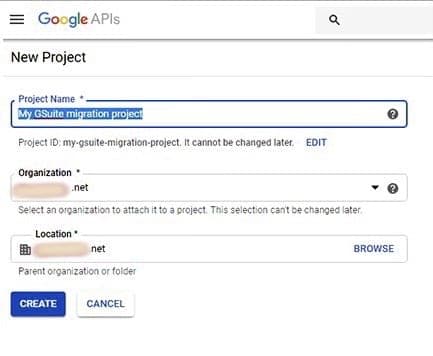
Follow the path IAM & Admin > Service Accounts > Create Service Account to create your service account.

On the next two screens, click Continue and then Done. You’ll see a list of existing projects. Select yours and click Edit. From the Service account details page, write down the Unique ID.

Click Show Domain-Wide Delegation. Make sure that it is enabled by ticking the box at Enable G Suite Domain-wide Delegation.
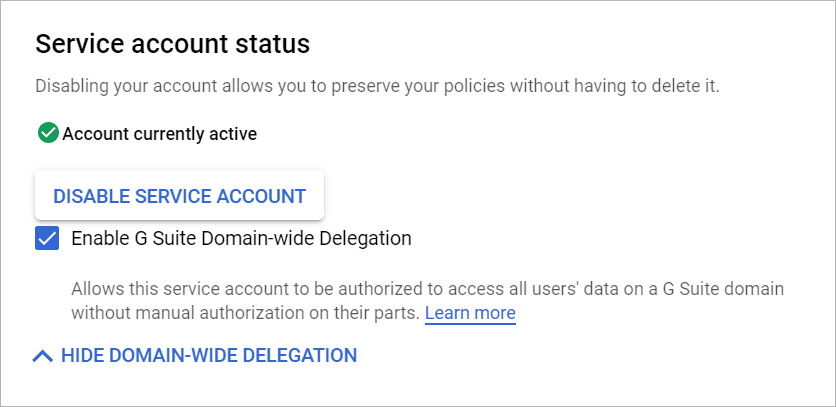
Go back to the Service account details page. Create a JSON file with your key. The file will be downloaded automatically.
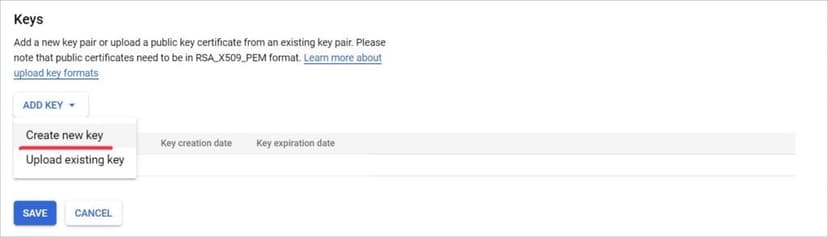
You will need the exact file name for later.
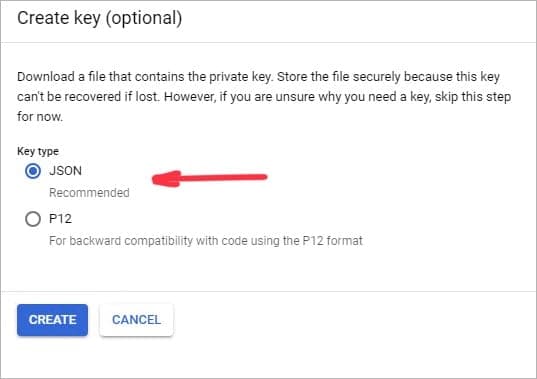
Grant access to the service account
Now go to the G Suite Admin page, and follow the path Security > Advanced settings > Manage Domain Wide Delegation. You see the API Clients list, choose Add new.
The Client ID is the Unique ID from one of the previous steps.
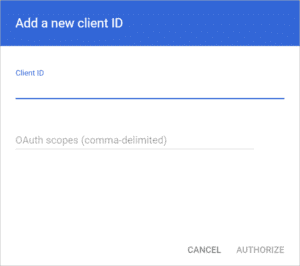
In the OAuth Scopes, you must list the products to migrate, like e-mail and calendar. Separate items in the list with commas. For instance:
“https://mail.google.com/,https://www.googleapis.com/auth/calendar,https://www.google.com/m8/feeds/,https://www.googleapis.com/auth/gmail.settings.sharing”
Press Authorize to finish this step.
#2 Route mail to Office 365
On the G Suite Admin page, open Domains > Manage domains > Add a domain. After entering a subdomain, a few simple steps are needed to verify the ownership.
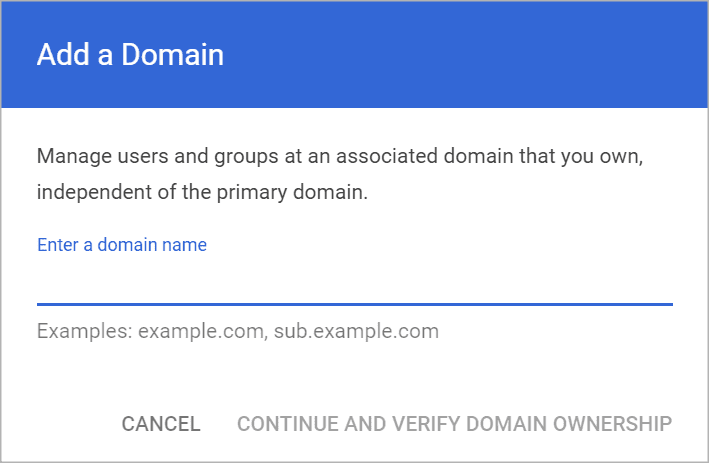
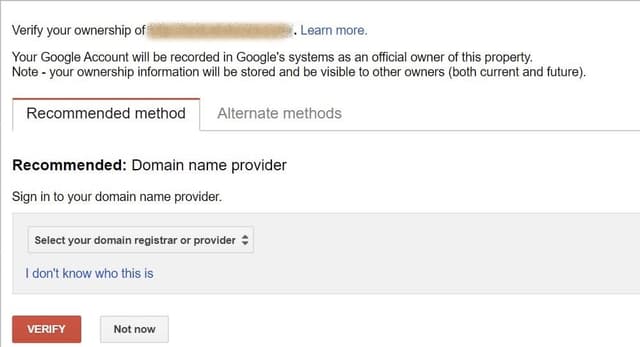
You must also update your Mail Exchanger (MX) record in the Domain Name System (DNS).
#3 Route mail to the G Suite domain
On the G Suite Admin page, open Domains > Manage domains > Add a domain alias. Follow similar steps as in the previous section:
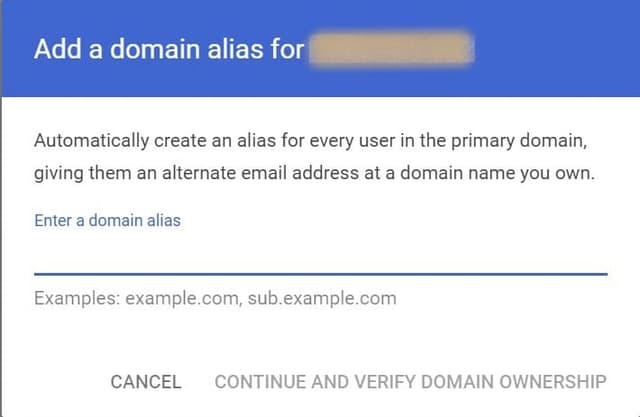
#4 Provision users in Microsoft 365 (Office 365)
Check that your users have enough rights (and not too many!) to perform their daily business.
#5 Create migration batches
Eventually, you arrive at the final stage of migrating from G Suite to Office 365.
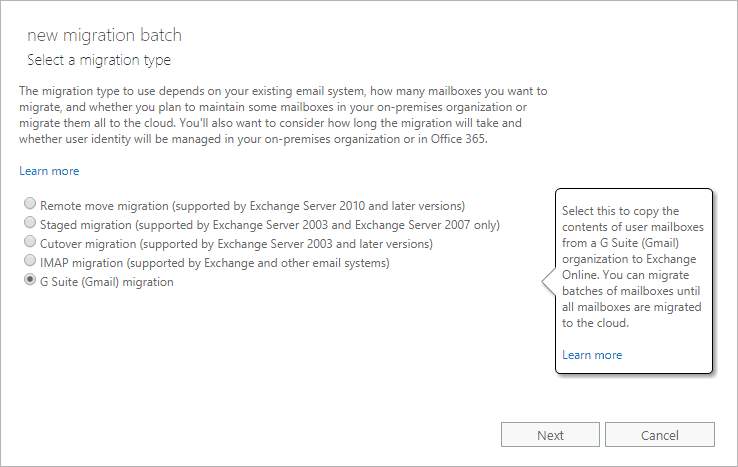
In the Microsoft Exchange admin center, follow the path recipients > migration > New + > Migrate to Exchange Online. Choose G Suite (Gmail) migration.
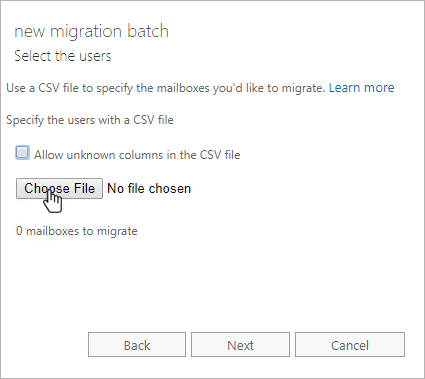
Upload a .CSV containing e-mail addresses of the migrated users.
You’ll be asked to upload the JSON file from one of the previous steps. Don’t forget to enter your Google super admin email.

Click Move configuration. Remember the step for mail routing to Office 365? This one you put in here!
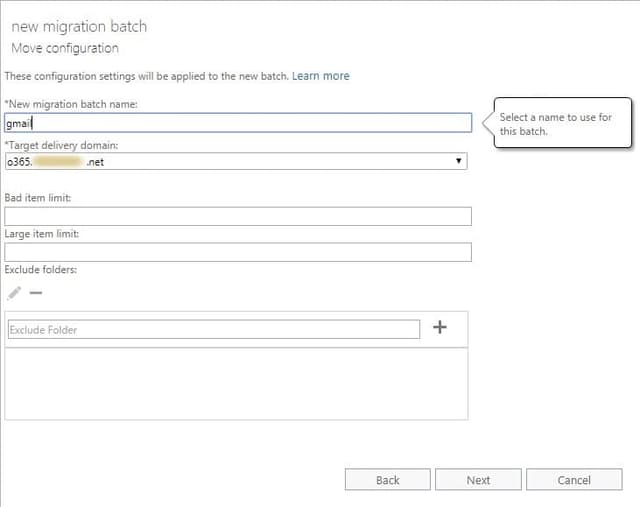
Customize progress notifications by accessing “Start the batch”.
#6 Update your DNS
Does the “Synced” status appear now? Well done! Lastly, update your MX record in the DNS.
Final check! Secure your Office 365 migration
Google Workspace (G Suite) and Office 365 are exceptionally secure. But SaaS protection is a shared responsibility. They cannot protect you from causes of data loss at your end or from the occasional outage or downtime. (Free ebook: 7 Reasons Why Enterprises Need SaaS Backup). This is particularly true during a migration. A colleague may have forgotten to ask for the inclusion of deleted calendar events in the migration plan. Some users suddenly realize that some Drive files disappeared from the trash bin before the migration due to their expiration date. You do not want to add to the stress of an already stressful migration with the fear of data loss. So how do you secure your Office 365 migration? With SaaS backup and recovery.
Everybody runs to you, the Admin, and pleads for recovery. You saved the day (and valuable data) by securing Office 365 with backup and recovery. You’ve backed up numerous data snapshots from all Google Workspace accounts, so no one needs to feel sad about their lost recycle bins. Open OpenText CloudAlly Backup, choose the backup you want, hit “Restore”, and at the applause.
After the migration period seems to be over, you do not give up your data protection best practices. Switch to OpenText Cloudally’s Office 365 backup without changing your data recovery partner. Thus, your entire migration from Google Workspace (G Suite) to Microsoft Office 365 is completely secured from data loss.

Michael Schneider
Michael Schneider is a senior director of marketing at OpenText.