How to recover a deleted SharePoint site
Administrators can recover deleted SharePoint sites by navigating the site collection's recycle bin within 90 days.

Michael Schneider
November 11, 2019•4 min read
Your team has created an elegant SharePoint Team Site for your intranet—it is the mainstay of your company. And then someone mistakenly hits delete, or the site gets corrupted. Or worse still, an entire Site Collection gets erroneously deleted by another admin. As the Office 365 or SharePoint administrator, it would be up to you to recover them. We thought we’d help out with a step-wise list of instructions to recover a deleted SharePoint site, along with best practices for Office 365 data recovery.
Note that we assume that you, as the Office 365 or SharePoint administrator, have the required permissions. If not, check with your technical support.
Consider that you have a SharePoint site for the CRM Development project team at this hypothetical URL: https://ppmdev.sharepoint.com/crm

Oops! The site has been accidentally deleted, and you will receive a 404 error when you try to access the site.

Perform the following steps to restore the deleted site.
Step 1: Go to Site Settings
- Go to the deleted site’s root site collection. The link in our example is https://ppmdev.sharepoint.com/ (without the subsite link ‘crm’).
- Log in as a user with the site collection admin permissions.
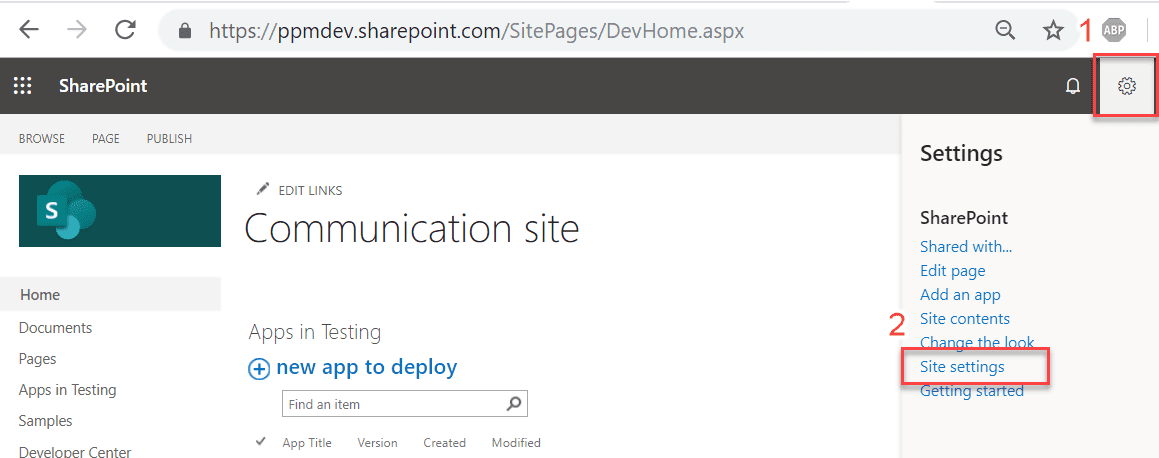
- In the top navigation panel, click Settings and then select Site settings from the dropdown menu.
Step 2: Go to the second-stage Recycle Bin
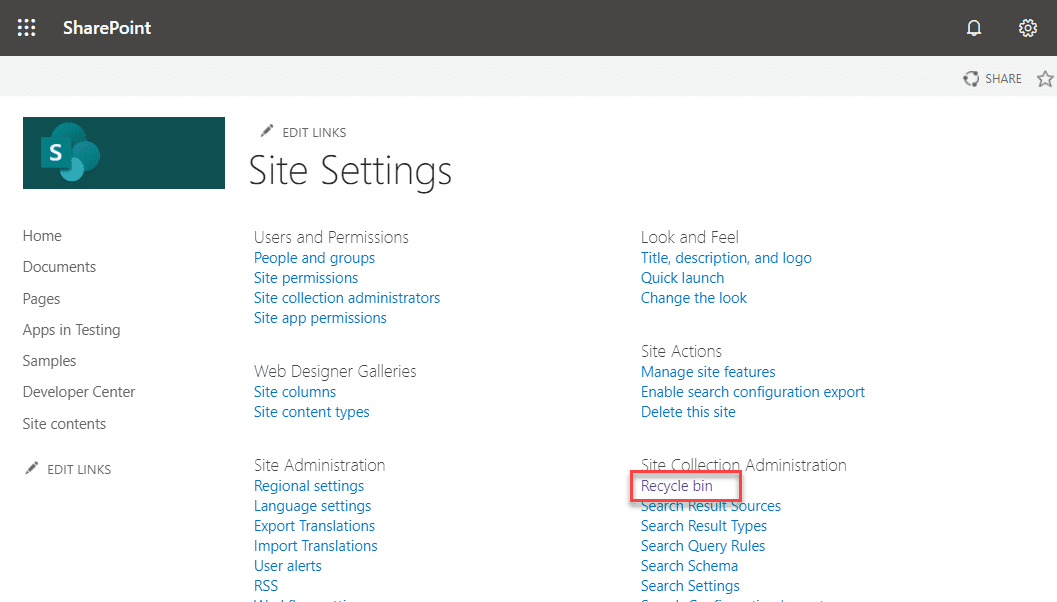
Click Recycle bin under Site Collection Administration section
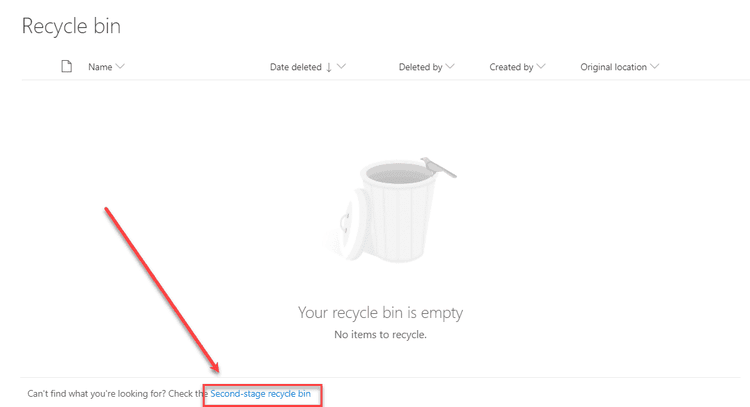
The recycle bin might be empty. Click the Second-stage recycle bin at the bottom of the page.
Step 3: Restore your deleted site
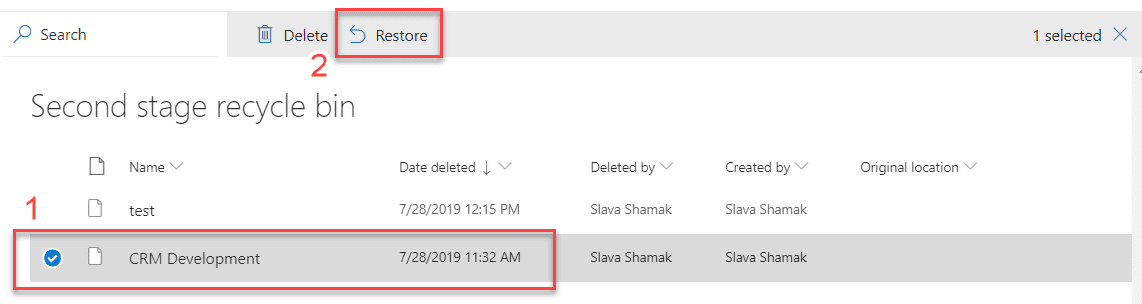
Select the site you want to restore and then click Restore.
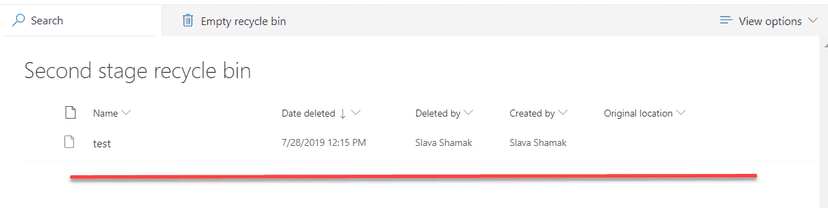
The restored site will disappear from the list after the restoring process is completed
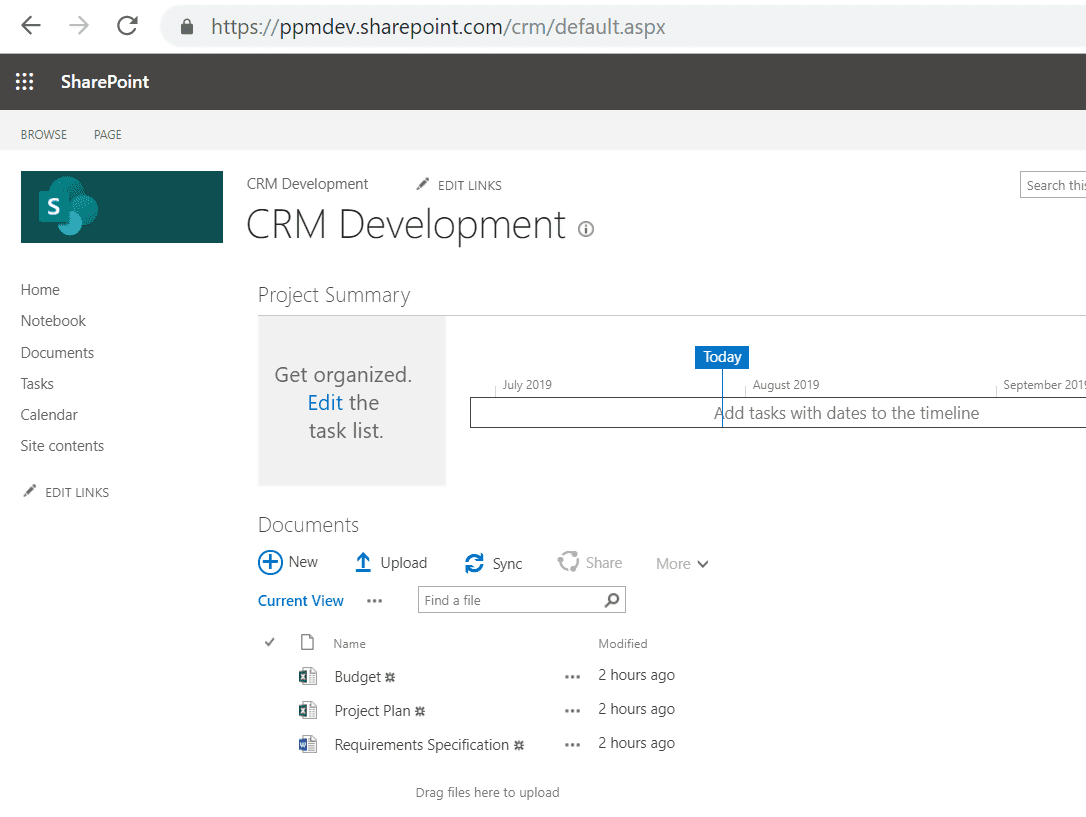
To verify that the site has been successfully restored, go to the site’s source link https://ppmdev.sharepoint.com/crm/.
For additional information, read more from the Microsoft Help Center
Limitations to restoring sites from SharePoint Recycle Bin
Here’s a caveat, and it’s an important one: Deleted sites are stored only for a maximum of 90 days. After that, they are automatically and permanently deleted.
Moreover, the Site Collection Recycle Bin has a quota on the amount of data that can be stored in the bin. If the quota is exceeded, then the oldest items, including deleted sites, will be automatically and permanently deleted.
SharePoint recovery best practices
Native options, such as restoring sites from SharePoint Recycle Bin, have time-based and size-based limitations. As the administrator, when faced with the stress of a deleted site or site collection, what if you found that it could not be retrieved because the Recycle Bin got purged, or three months have elapsed? Understand that such built-in solutions are meant as a band-aid measure, not a robust recovery solution.
Additionally, SaaS solutions cannot protect you from data loss at your end due to human error, malicious intent, malware attacks, or sync errors. With one in three organizations having experienced SaaS data loss, you need a dependable backup and recovery solution to quickly get your lost data back—accurately and from any point in time.
OpenText Cloudally Backup for Microsoft 365 comprehensively backs up SharePoint Online Team Site (and all sub-sites), Public Site (and all sub-sites), private Site Collections, and OneDrive for Business Sites. What’s more, it stores the backup indefinitely and in Amazon’s highly reliable data centers. Cloudally makes recovery a breeze with provisions for non-destructive restores both at the granular item level or of the complete site. Learn more.
Watch this short video to see how easy it is to restore a SharePoint site for with OpenText Cloudally.
Reach out to us to see how we can smooth out your SharePoint recovery.

Michael Schneider
Michael Schneider is a Senior Marketing Director at OpenText Cybersecurity, focused on SaaS marketing and go-to-market strategy. He joined OpenText through the acquisition of CloudAlly, where he served as Marketing Director for over nine years, scaling the company to 30,000 customers and delivering 8x revenue growth ahead of its 2021 exit. Michael holds an MBA from The Open University and a Bachelor's degree in Business Administration and Economics from Richmond, The American International University in London. He is passionate about data-driven marketing that accelerates SaaS growth.
