How to archive Sharepoint: 4 archiving solutions
Archive SharePoint sites and documents using OneDrive, version control, new libraries, or retention policies.

Michael Schneider
October 14, 2021•5 min read
Do you have users storing documents in a library that exceeds the 5000 threshold view limit? Do governance policies mandate archiving? In this blog, we will detail five ways to archive SharePoint (Online) Sites and Documents – using OneDrive, via Version Control, by creating a new Archive library, or by using a retention policy.
This blog is a part of our series on native Microsoft (Office) 365 SharePoint Online Backup and Restore options – in Part 1, we detailed how to create a SharePoint (Online) Retention Policy.
Here we walk through four native SharePoint Online archiving solutions:
Archive SharePoint Using OneDrive
If you delete a file on a SharePoint document library, the file is automatically removed from the OneDrive on your computer. To avoid that, set up archiving files on your computer.

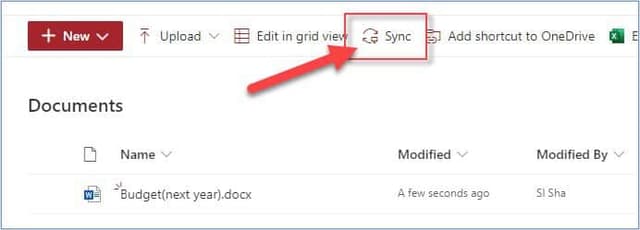
Go to the document library and click “Sync” on the toolbar
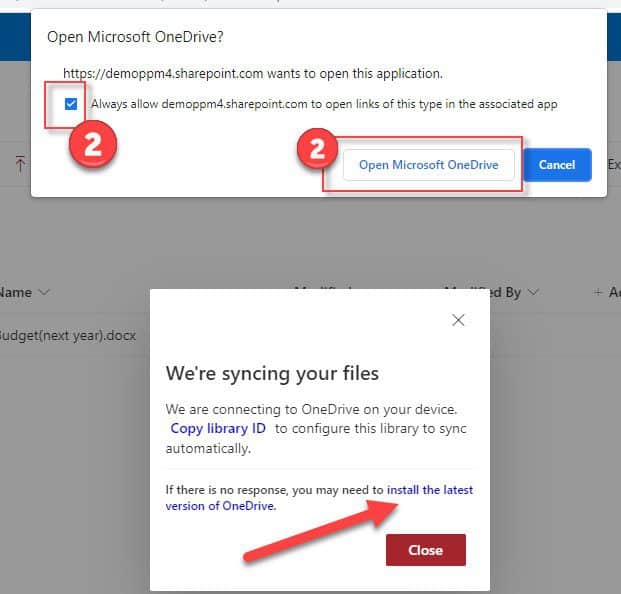
Select “Always allow to open links…” and then click “Open Microsoft OneDrive”
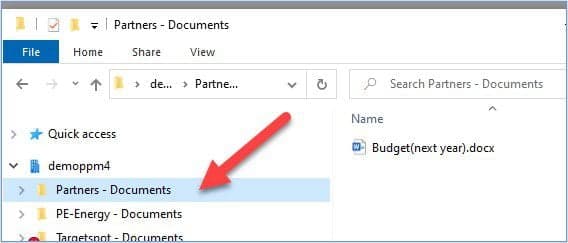
All files from the document library will be synchronized to your PC and available on the native file explorer.
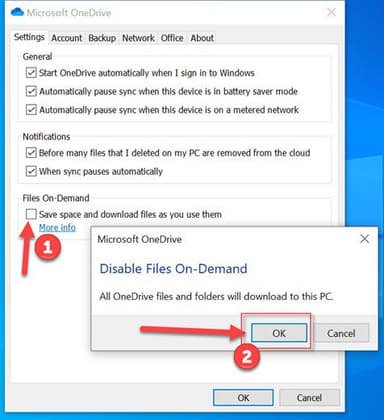
By default, only files that you open are saved on your PC. If you need to archive all files, make these changes to the OneDrive settings.
- In OneDrive“Settings”
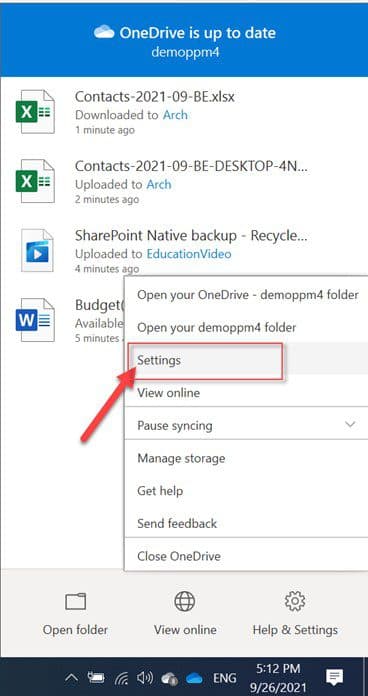
- Uncheck “Save space and download files as you use them” and then confirm by clicking “OK”
SharePoint archiving solution using version control
Every time a file is saved, SharePoint stores it as a version of the source document. You can then restore any previous version in case of document deletion.
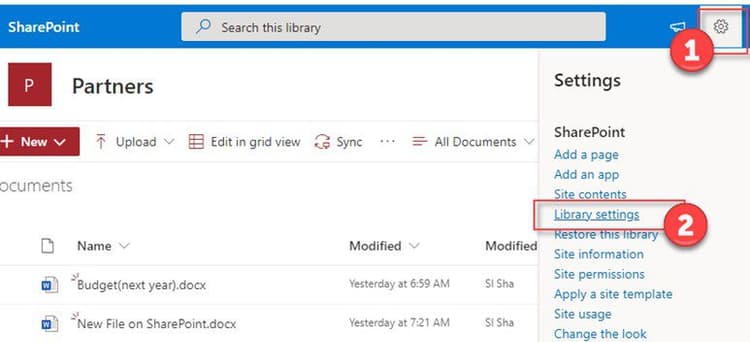
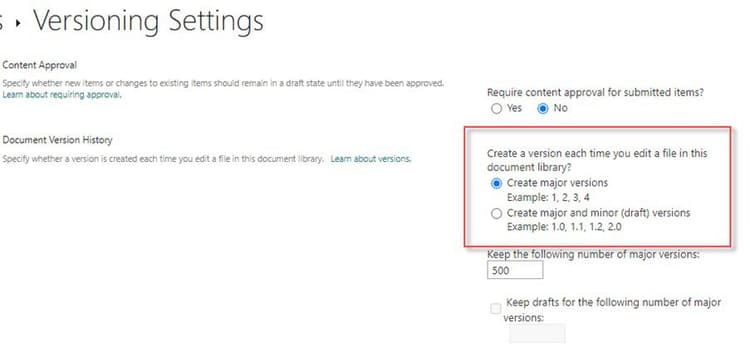
To turn on versioning, go to the document library settings
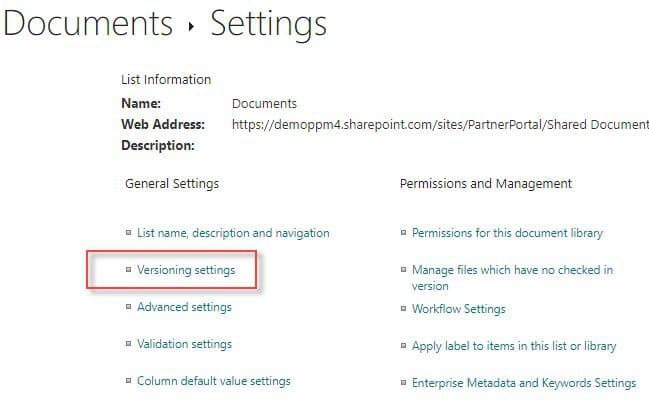
Click on “Versioning settings” under the “General settings” section
Select either “Create major versions” or “Create major and minor (draft) versions” and click OK
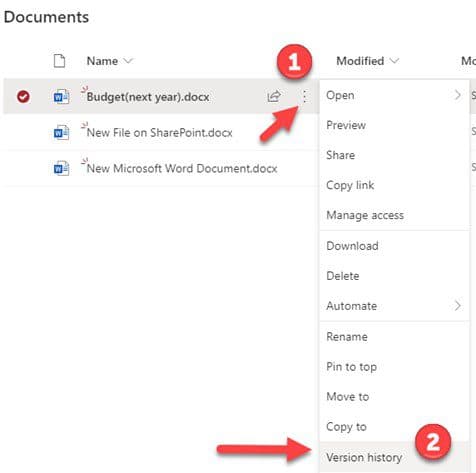
When you wish to restore a version, go to the document library, select a document, click on the three dots, and select “Version history.”
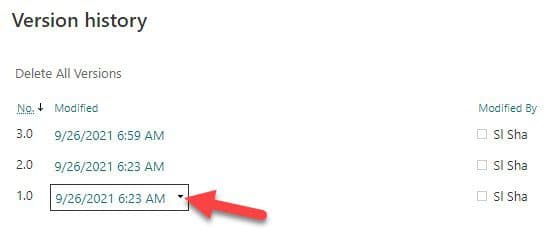
Move the cursor over the version to be restored and click on the small triangle to call a pop-up menu.
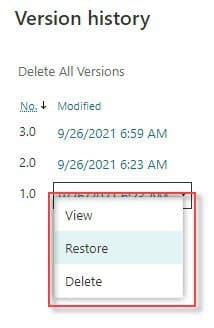
You can either preview the version or restore it
Archive SharePoint using the retention policy
Create an “Archive” site and create a retention policy that applies to the content of the SharePoint Archive site. Follow these instructions to set up a SharePoint retention policy via the Compliance Center, and learn how to set up a SharePoint retention policy using PowerShell.
Archive library as a SharePoint archiving solution
Another native SharePoint archiving solution is to move data to another “archive” library. Create a new library or directory named “Archive” and a “Status” label. Add documents that you wish to archive to this library on the same site via the browser. Note: it could cause the document link to change. You can further automate it by creating a workflow in SharePoint Designer that automatically moves documents with a Status as “Archive” to the Archive library that you created.
Limitations of native SharePoint archive solutions
Native SharePoint options have limitations, such as a maximum of 20,000 – 30,000 files per document library that OneDrive can synchronize. There are URL size limitations too, for example, a 400-character limit to the document library name, folders, and file name. However, native archiving also has critical limitations such as increasing storage costs (or license costs to match the increase in storage size), and the inability to restore data indefinitely.
The best way to archive SharePoint
Instead, consider using a third-party backup that allows you to backup your data from Day 1, facilitates quick and easy recovery, and ensures regulatory compliance. OpenText Cloudally Backup for SharePoint securely stores all your SharePoint data on Amazon AWS storage (zero storage costs for you) and provides one-click restore of your data in minutes.

Michael Schneider
Michael Schneider is a Senior Marketing Director at OpenText Cybersecurity, focused on SaaS marketing and go-to-market strategy. He joined OpenText through the acquisition of CloudAlly, where he served as Marketing Director for over nine years, scaling the company to 30,000 customers and delivering 8x revenue growth ahead of its 2021 exit. Michael holds an MBA from The Open University and a Bachelor's degree in Business Administration and Economics from Richmond, The American International University in London. He is passionate about data-driven marketing that accelerates SaaS growth.
